
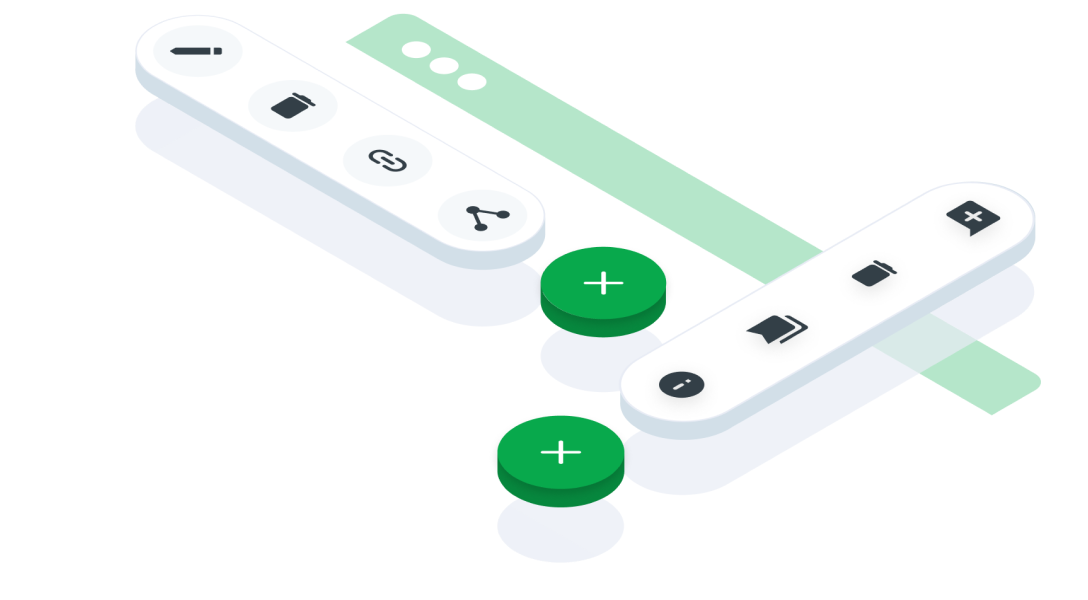
ComponentsFloating ButtonA floating button in interface design refers to an interactive element that floats above the main content of an application or website, typically providing quick access to essential functions or frequently used actions
Guidelines
Mobile
Resources
- You can use these components by accessing the provided resource files.
- Preview animations are examples and may not suit Mobile Widgets. Press 'View Code' to access the Widgetbook Playground and see the Flutter widget displaying all created components and interactive.
Usage
Import this line to your file:
import 'package:buma_design_system/buma_design_system.dart';
Attributes of all variants
If there is a question mark ? in the Data Type, it means that the properties are optional, this is namedConstructor from UIFloatingButton
UIFloatingButton & UIFloatingButton.horizontal
| Properties | Data Type | Description | Default Value |
|---|---|---|---|
| icon | IconData | Displays the icon in the center UIFloatingButton | null |
| variant | UIFloatingButtonVariant? | Displays different floating buttons using certain variants | ``UIFloatingButtonVariant.vertical` |
| size | UIFloatingButtonSize | A constant size to create different padding on content | UIFLoatingButtonSize.large |
| label | String? | Displays labels to the right of icon | null |
| menus | List<UIFloatingBUttonMenu>? | A collection of menus that display several additional floating buttons | [] |
| onPressed | VoidCallback? | A callback when the user presses a button | null |
Previews & Code
You can call the components with Class.namedConstructor() with different variants
UIFloatingButton.vertical
   UIFloatingButton.vertical(
    icon: Icons.add,
    label: 'Add',
    menus: [
      UIFloatingButtonMenu(
        icon: Icons.flight,
        label: 'Menu 1',
        onPressed: (){
          // Do something on Menu 1
        }
      ),
      UIFloatingButtonMenu(
        icon: Icons.flight,
        label: 'Menu 2',
        onPressed: (){
          // Do something on Menu 2
        }
      )
    ]
  )
UIFloatingButton.horizontal
   UIFloatingButton.horizontal(
    icon: Icons.add,
    label: 'Add',
    menus: [
      UIFloatingButtonMenu(
        icon: Icons.flight,
        label: 'Menu 1',
        onPressed: (){
          // Do something on Menu 1
        }
      ),
      UIFloatingButtonMenu(
        icon: Icons.flight,
        label: 'Menu 2',
        onPressed: (){
          // Do something on Menu 2
        }
      )
    ]
  )