
Bar Chart
Anatomy
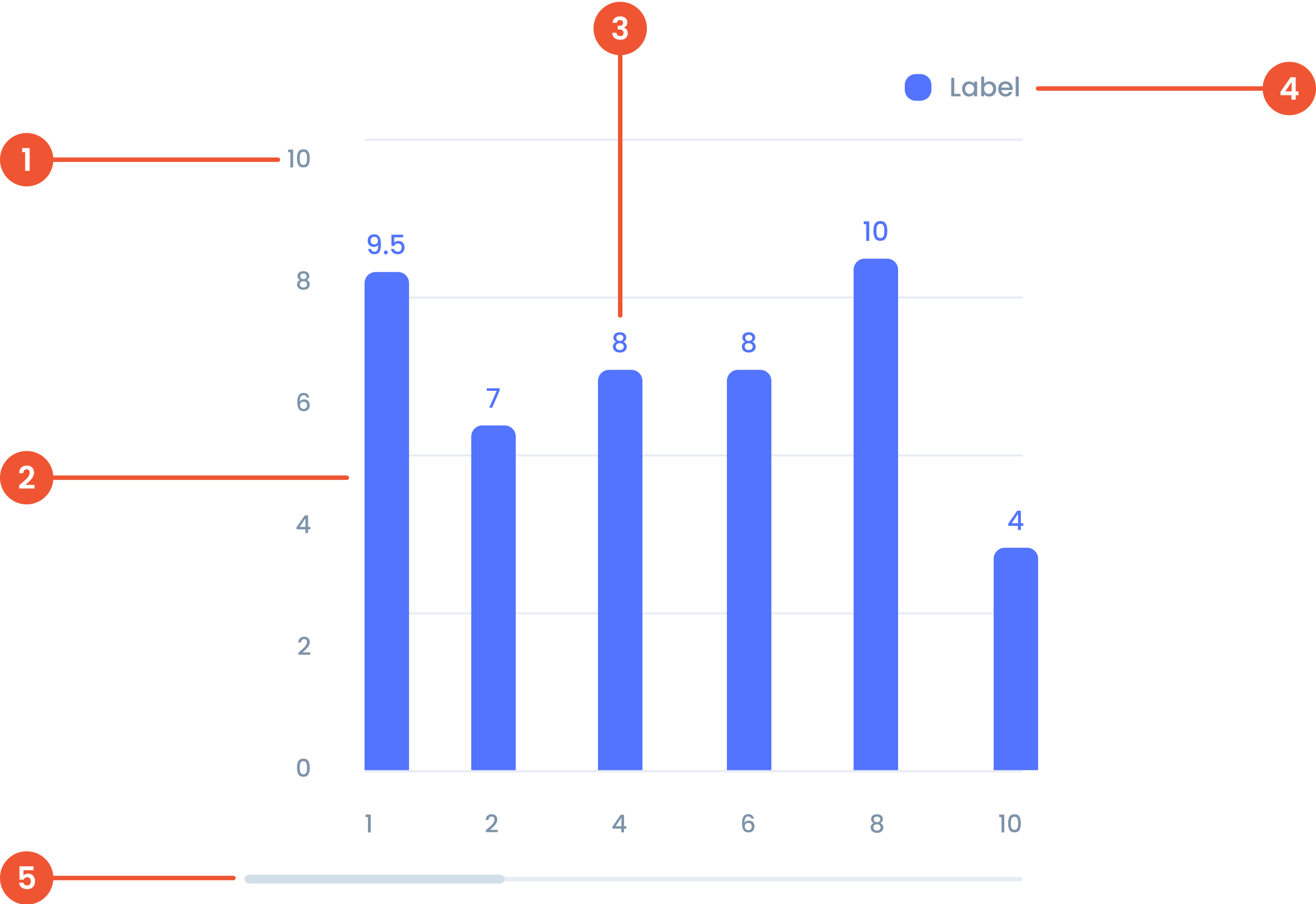
The value in a bar chart represents the numerical data corresponding to each category. It determines the height or length of the bar.
The chart bar is the visual element that represents the value. It can be horizontal or vertical depending on the orientation of the bar chart.
The label in a bar chart is the descriptive text that identifies categories or axes. Labels provide context for the data.
A visual elements that serve as a guide to explain the meaning of various data or elements displayed in a graph
A bar that lets you move around the chart when there’s too much data to fit on the screen.
Guidelines for Bar Chart
- Y-Axis and X-Axis Maximum Values: Up to 10 different values on each axis for clarity.
- Single Category: Up to 10 bars for readability.
- Stacked Bars: Up to 5 stacked bars per category for . maintain clarity.
- Axis Labels: Limit to under 15 characters to avoid truncation.
- Bar Labels: Limit to 10 characters for better readability.
- Bar Width: Make sure the bar width is consistent for all bars.
- Spacing: Keep the same distance between bars.
- Alignment: Bars must be properly aligned on the X-axis with the category labels below them.
- Label: Place a label under the X-axis for each bar.
- Bar Height: Ensure consistent bar height for all bars.
- Spacing: Maintain equal distance between bars.
- Alignment: Bars must be properly aligned on the Y-axis with category labels on the left side.
- Label: Place a label to the left of the Y-axis for each bar.
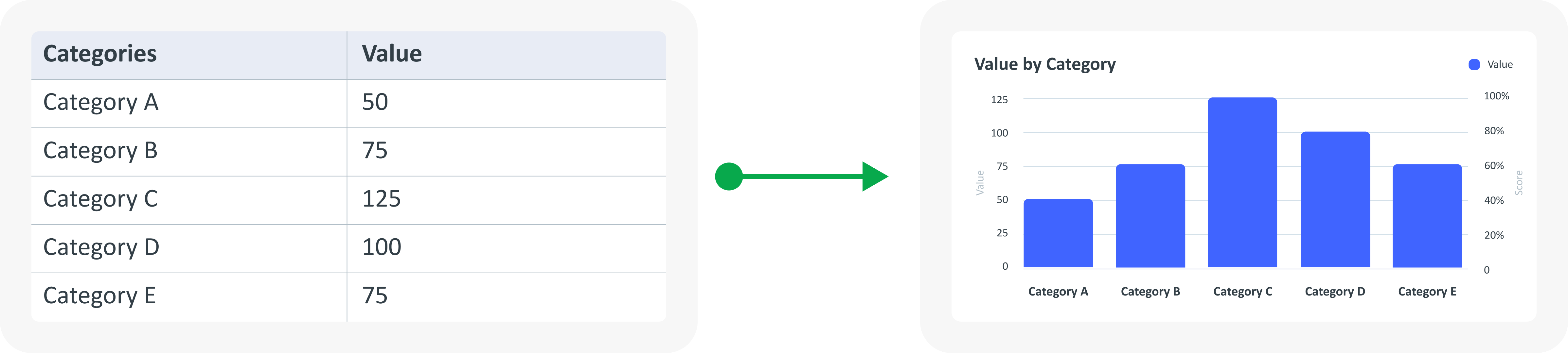
Example of Source Data
When to Use Bar Chart?
- Comparing values between different categories.
- Ideal for comparison of categorical data.
- Shows differences between categories.